SuperAAC

The Communication Software fully reinvented

Words, symbols and phrases on a grid of buttons, spoken aloud the moment one is chosen, with no network needed after the first sign-in.
SuperAAC is now in Open Beta.

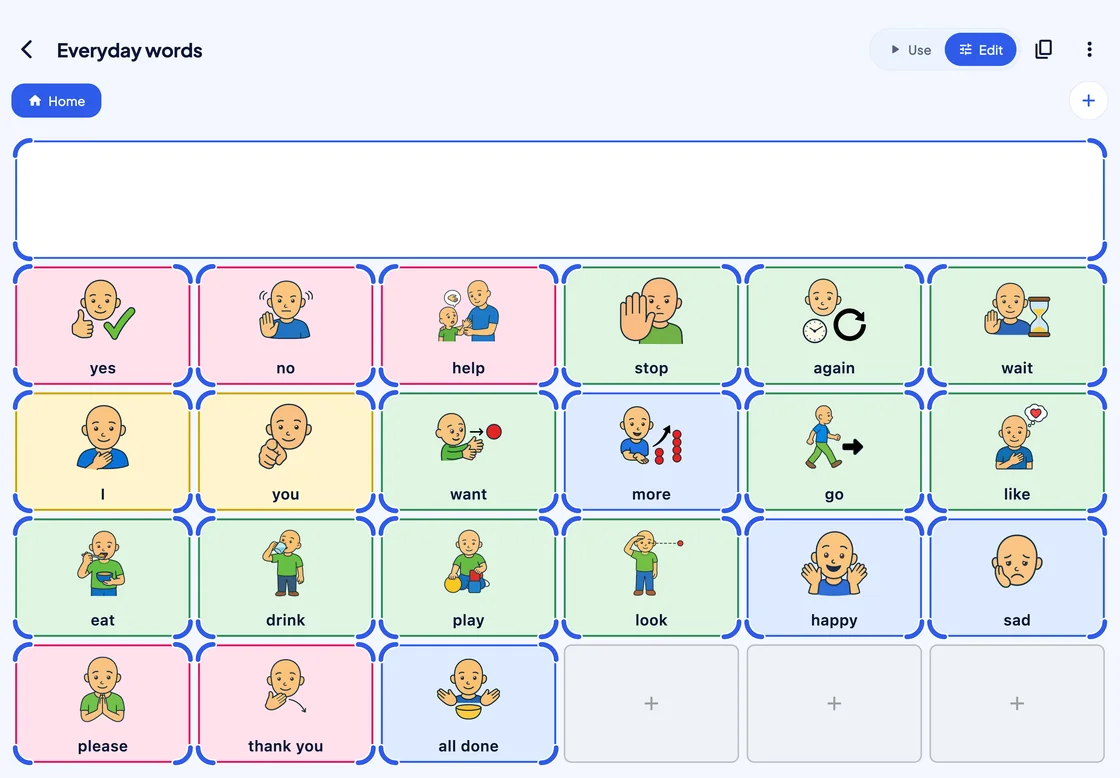
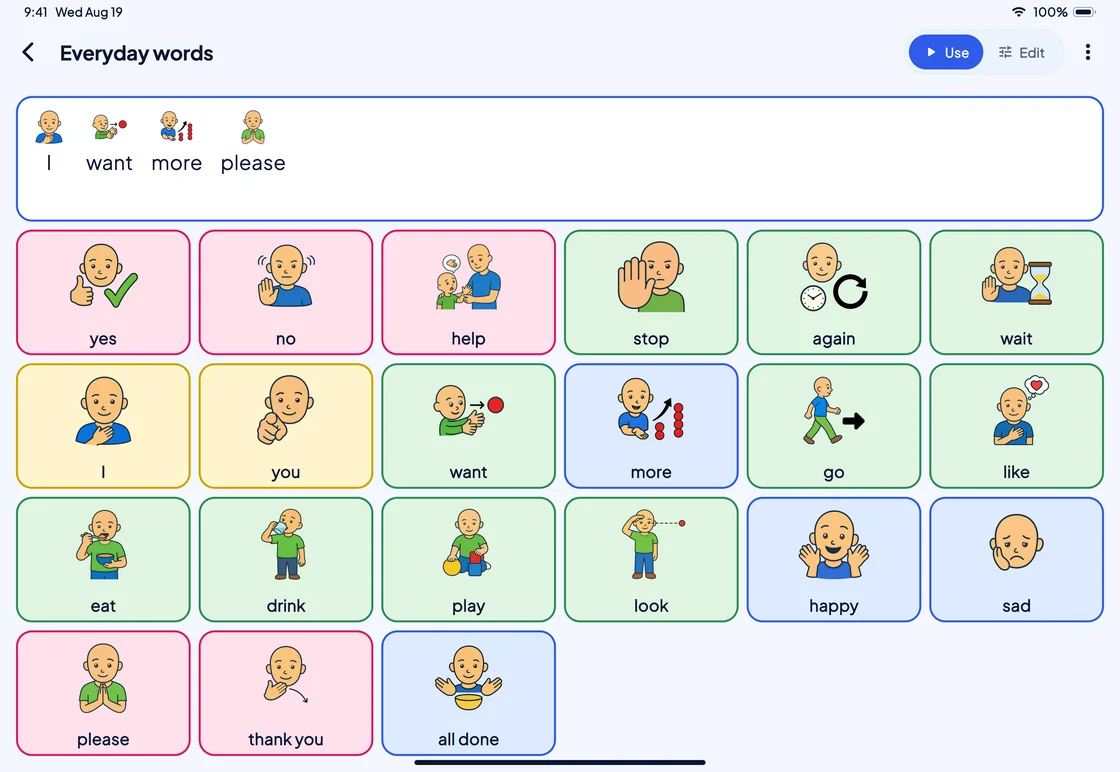
SuperAAC on a tablet: the Everyday words board in PAACs symbols, with “I want more please” in the writing area.

Access

Every way in

Touch, a mouse or head pointer, one or two switches, or eye gaze: each one can drive every board.
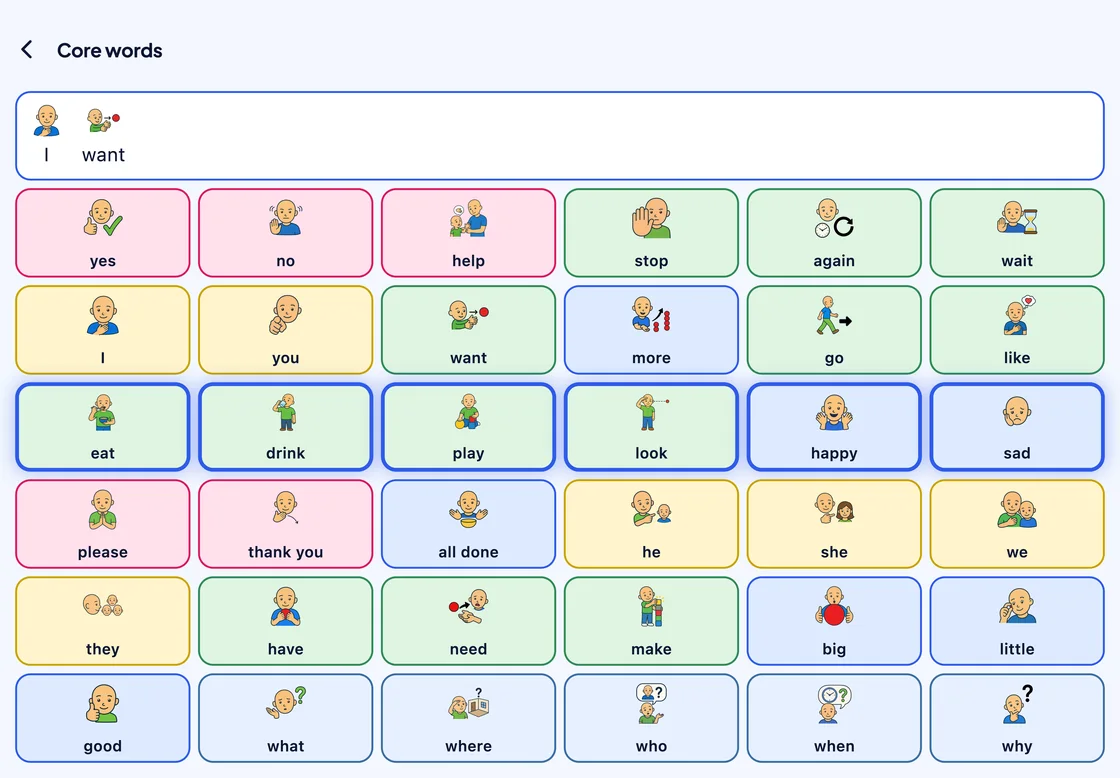
Switch scanning on the Core words board: “I want” is in the writing area, and a thick blue highlight sits on the whole third row: eat, drink, play, look, happy, sad.
Row by row. With row and column scanning, the highlight steps through the rows until a switch press picks one.
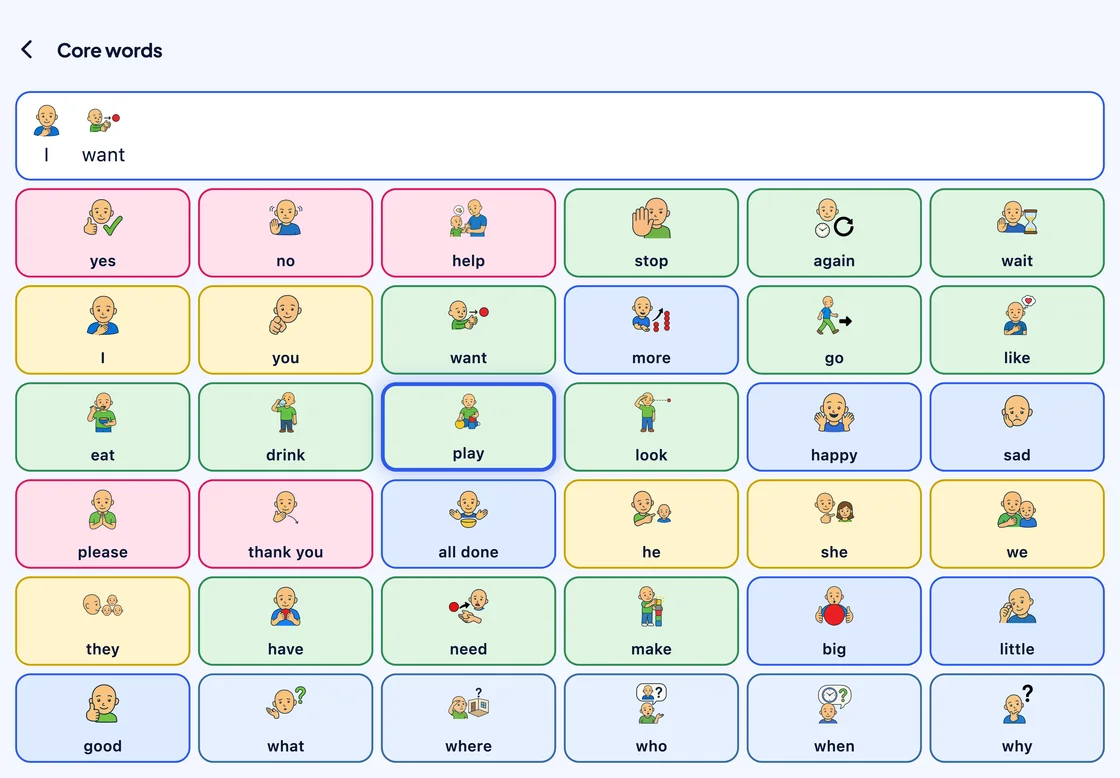
The same board a moment later: inside the third row, the blue highlight has moved on to a single cell, “play”.
Then cell by cell. Inside the row the highlight moves one word at a time, and the next press chooses it.
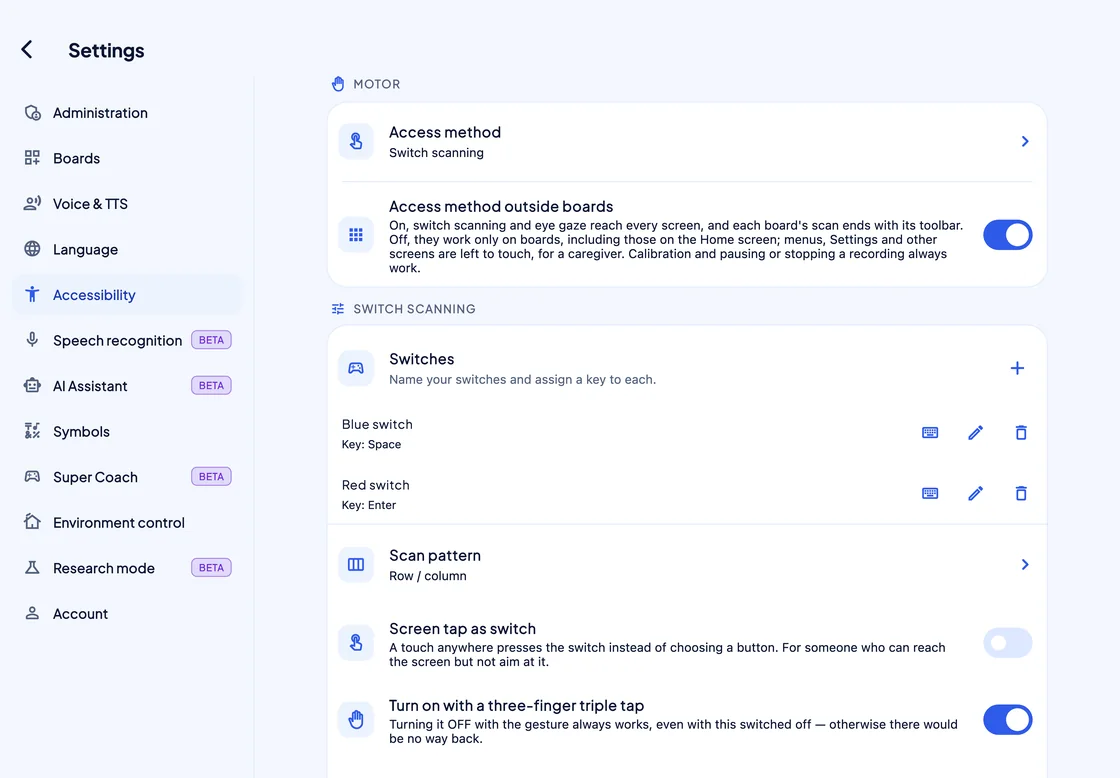
Settings, Accessibility: access method Switch scanning, two named switches (Blue switch on the Space key, Red switch on Enter), scan pattern Row / column, Screen tap as switch off, and Turn on with a three-finger triple tap on.
Name each switch, then press it to assign its key. Two switches step and select; with one, a timer does the stepping.
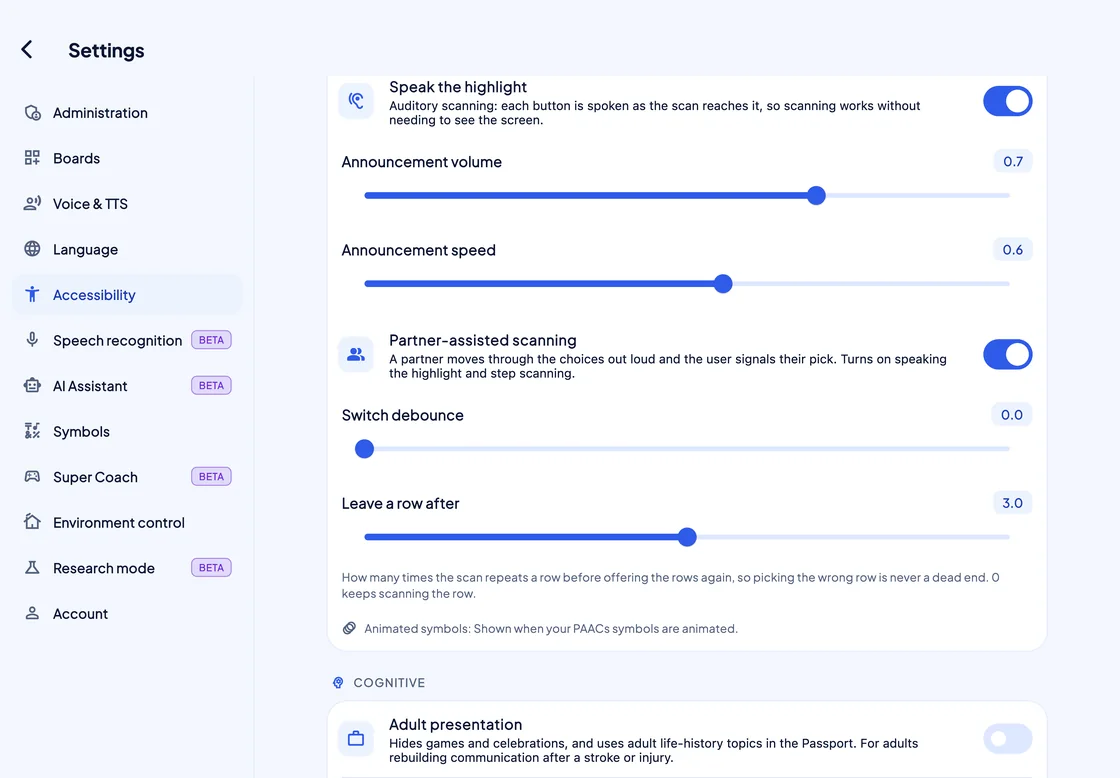
Further down the switch scanning settings: Speak the highlight (auditory scanning) on, with announcement volume and speed, Partner-assisted scanning on, Switch debounce, and Leave a row after 3.0.
Heard, or read out by a partner. Auditory scanning speaks each choice as the highlight reaches it; in partner-assisted scanning, a partner reads the choices and the person signals one.
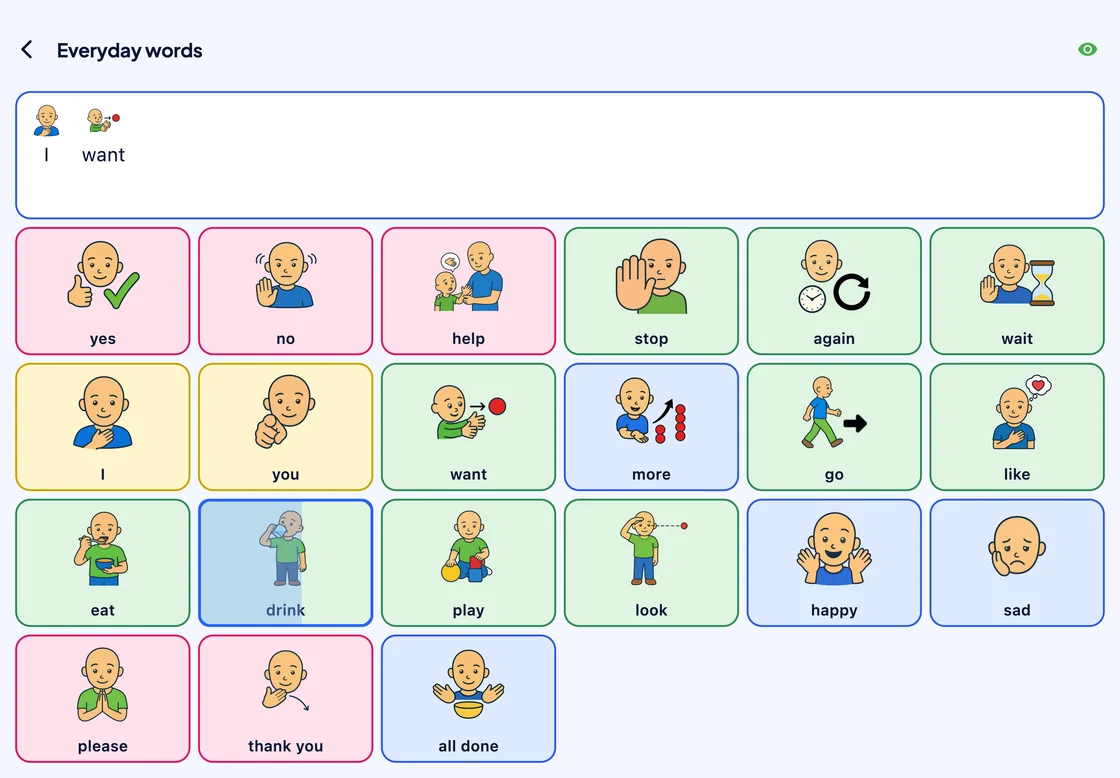
The Everyday words board in use with eye gaze: “I want” in the writing area, and the cell “drink” outlined in blue, with a light-blue dwell fill about 60% of the way across it. A green eye icon at the top shows the tracker is connected.
Look, and it speaks. The cell fills while the person looks at it, using a Skyle 3 or, on Windows, an Alea IntelliGaze.

Reply suggestions

It listens, too Beta

SuperAAC hears what the partner says and, with AI mode on, suggests short replies that answer it.
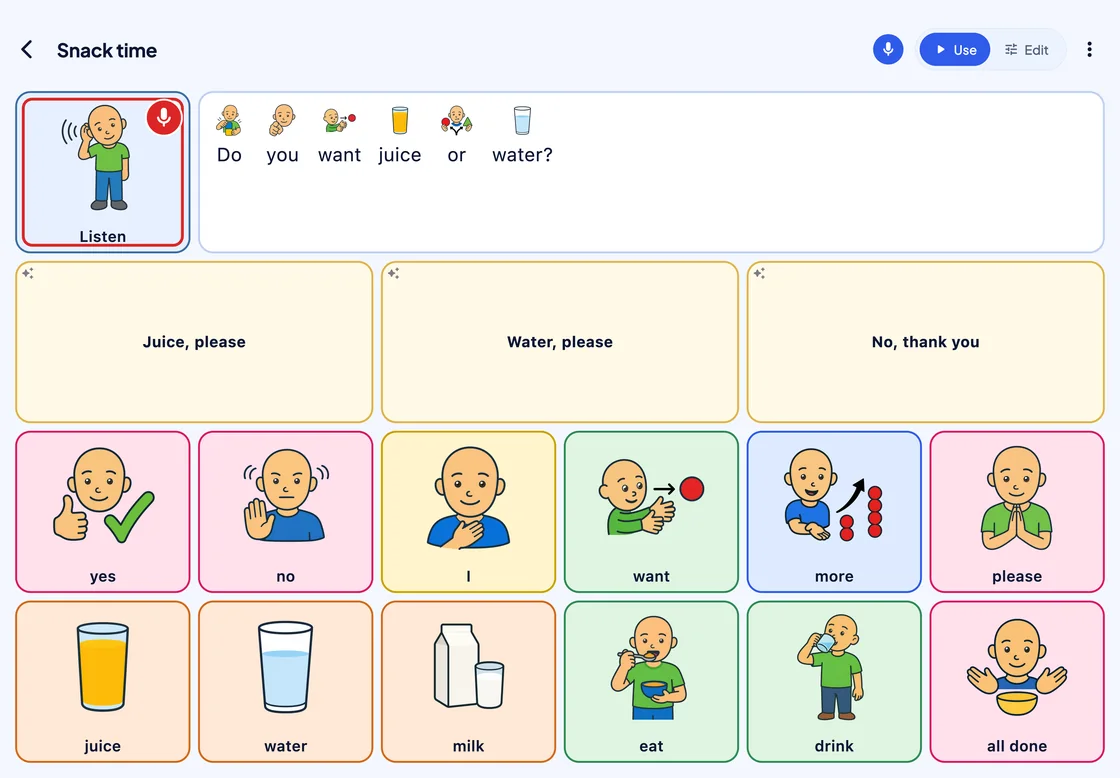
A Snack time board while listening: the Listen cell is on, the heard question “Do you want juice or water?” is shown with a picture over each word, and three replies are suggested: Juice, please; Water, please; No, thank you.
The question, and its answers. The partner’s words appear with a picture over each, and three replies are ready to press.

Boards

Boards you shape, or AI builds

Start from a ready-made board, ask the AI Assistant for a new one, or shape every cell yourself.
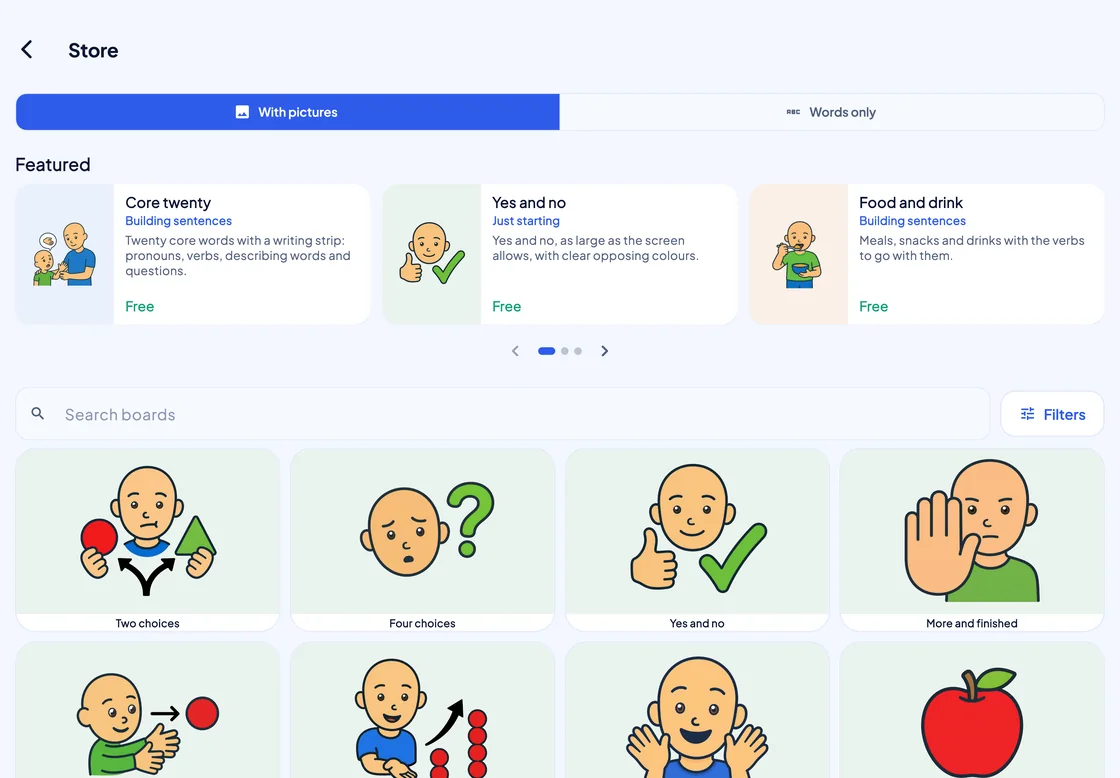
The Store: a With pictures / Words only switch, a Featured carousel with Core twenty, Yes and no, and Food and drink, then a Search boards field, a Filters button, and a grid of boards with large PAACs covers: Two choices, Four choices, Yes and no, More and finished.
87 ready-made boards in 12 categories. From Two choices to Core eighty-four, with boards for the school day and a hospital visit.
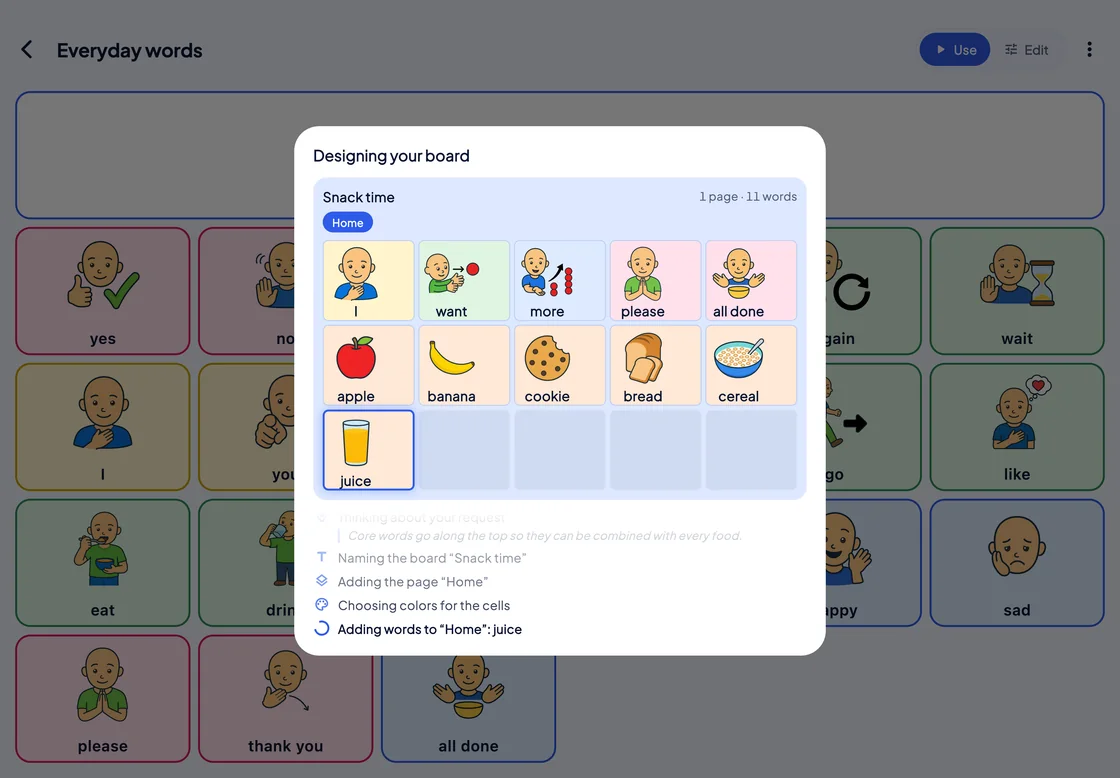
The “Designing your board” pop-up over the dimmed Everyday words board: a Snack time board fills in cell by cell (I, want, more, please, all done, apple, banana, cookie, bread, cereal, juice), with each step listed below.
Ask for a board, and watch it take shape. The AI Assistant (Beta) chooses the words, the symbols and the colours, one cell at a time.
The Everyday words board in Edit mode: every cell has blue resize handles, and three empty cells are marked with a plus.
One tap between talking and editing. With Administrator on, Use and Edit sit in the top bar, and Edit turns the whole board into a layout you can change.
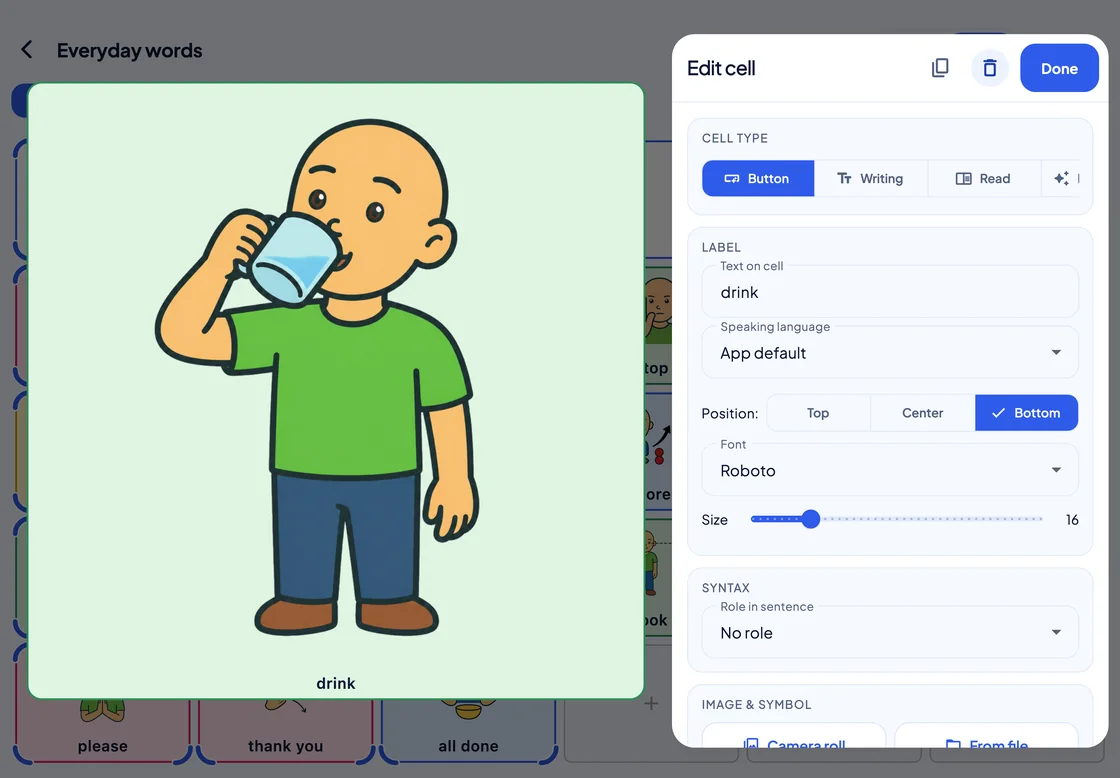
The Edit cell panel (cell type, the label “drink”, speaking language, position, font, size and role in sentence) beside a large preview of the cell “drink”.
See the cell while you change it. Its words, symbol, colour and speaking language, beside a full-size preview.
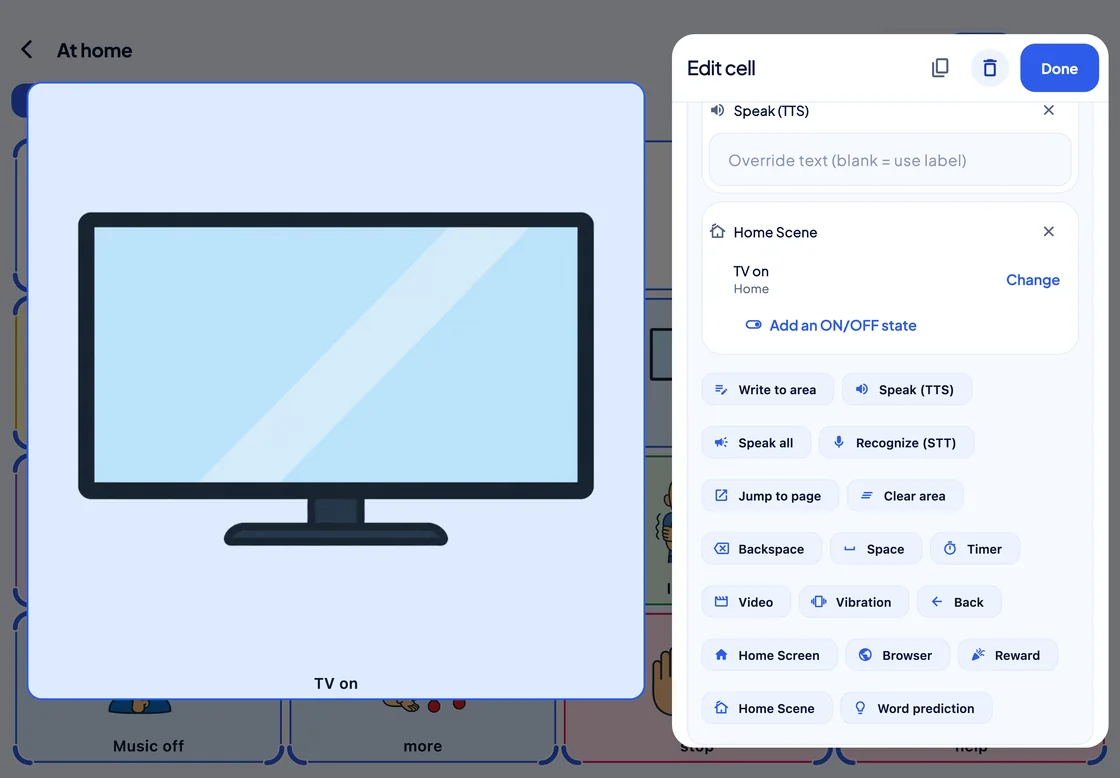
The Edit cell panel for a “TV on” cell: its Speak (TTS) and Home Scene functions, the scene “TV on” with a Change button, then every function that can be added, from Write to area to Word prediction.
A cell can do more than speak. Stack functions such as Speak, Jump to page, Timer or Home Scene, and they run in order, top to bottom.

Voice

The voice that speaks for them

Use the device’s own voices, or the Monolith voice: an Italian neural voice that runs on the device with no network.
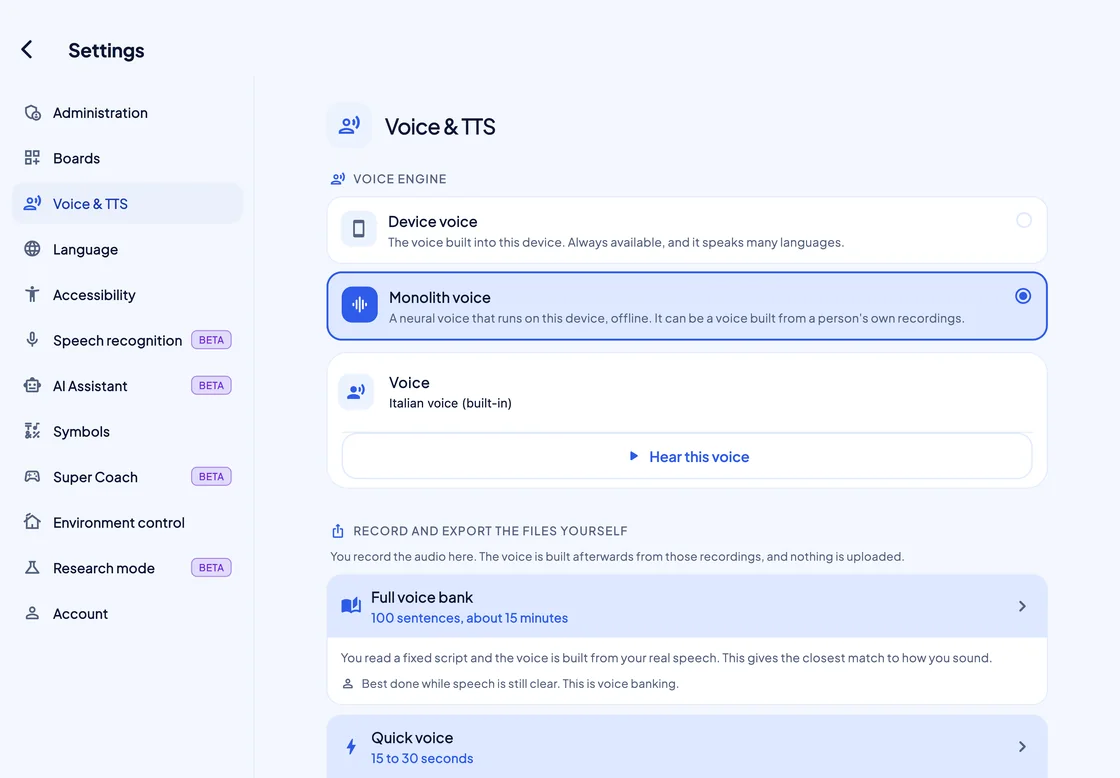
Settings, Voice & TTS: Monolith voice chosen over Device voice, the built-in Italian voice with a Hear this voice button, and below it the Full voice bank and Quick voice recording routes.
Two voice engines. Choose one, then press “Hear this voice” to try it. The recording routes below it are for the coming personal voice.
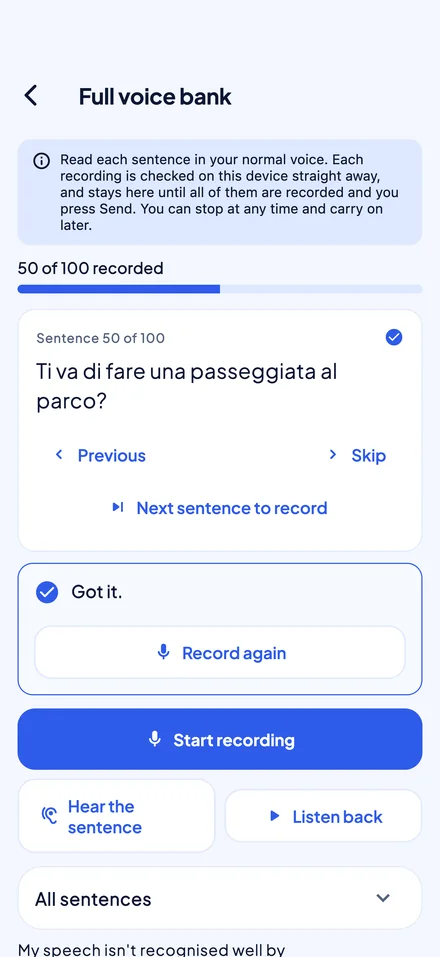
The Full voice bank recorder on a phone: 50 of 100 sentences recorded, sentence 50, in Italian, marked “Got it.”, and a Record again button.
Coming: a voice of their own. Built from 100 recorded sentences, Italian first.

Calls

Text-to-speech in phone and video calls

On iPhone and iPad with iOS or iPadOS 18.2 or later, what the person says through SuperAAC goes into the call while SuperAAC is on screen.
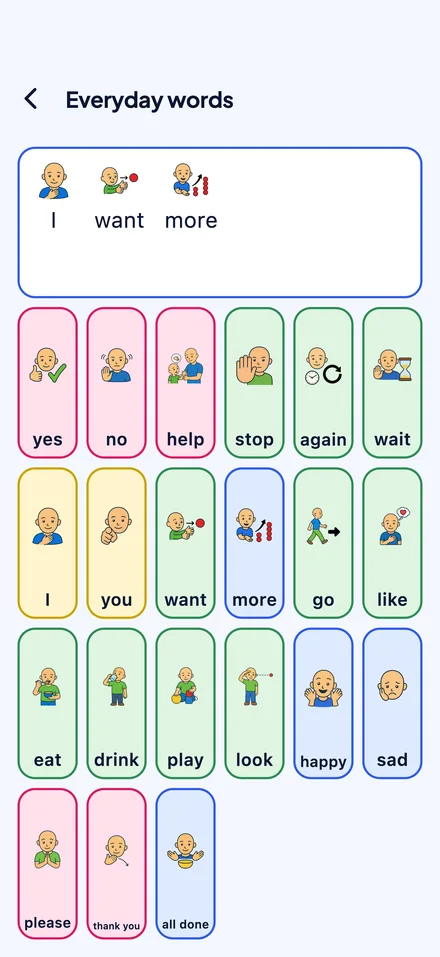
The Everyday words board on a phone, with “I want more” in the writing area.
The person answers, then talks with their board. The setting is off by default, and set up once in Settings. Someone may need to help with that once.
  • Phone calls and FaceTime

    On iPhone and iPad. What the person says goes into a phone call, FaceTime and most other call apps that use Apple’s voice processing, through Apple’s Add Audio in Calls.

  • SuperAAC’s own video calls

    Coming. A linked therapist or teacher on Pro or Max can call the person inside SuperAAC, once the person allows it. The person needs their own sign-in. What the person says reaches the caller as captions and voice.

  • Also heard in the room

    People nearby hear every message too. The caller hears the room as well, and muting the call also mutes SuperAAC.

Deafblind access

Boards you can read by hand

Give a cell its own vibration, and it announces itself the moment a finger lands on it.
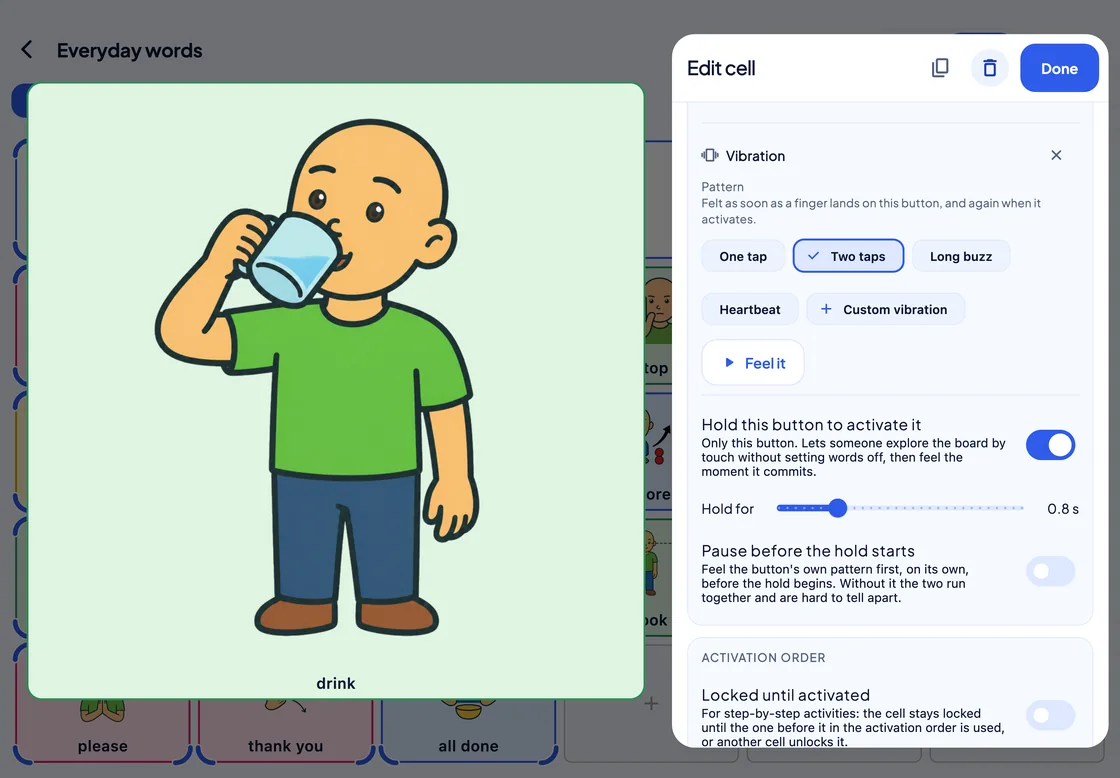
The Edit cell panel showing Vibration: the patterns One tap, Two taps (chosen), Long buzz and Heartbeat, Custom vibration, a Feel it button, and Hold this button to activate it, switched on.
Hold to activate. With “Hold this button to activate it” on, a hand can rest on a cell to read it; the cell acts only when held.
  • 4 vibration patterns, plus your own
  • Phones iPhone and Android phones need nothing extra
  • iPad Through an Apple Pencil Pro only; Windows and Mac have no vibration

Beyond the board

The person, their day, their schoolwork
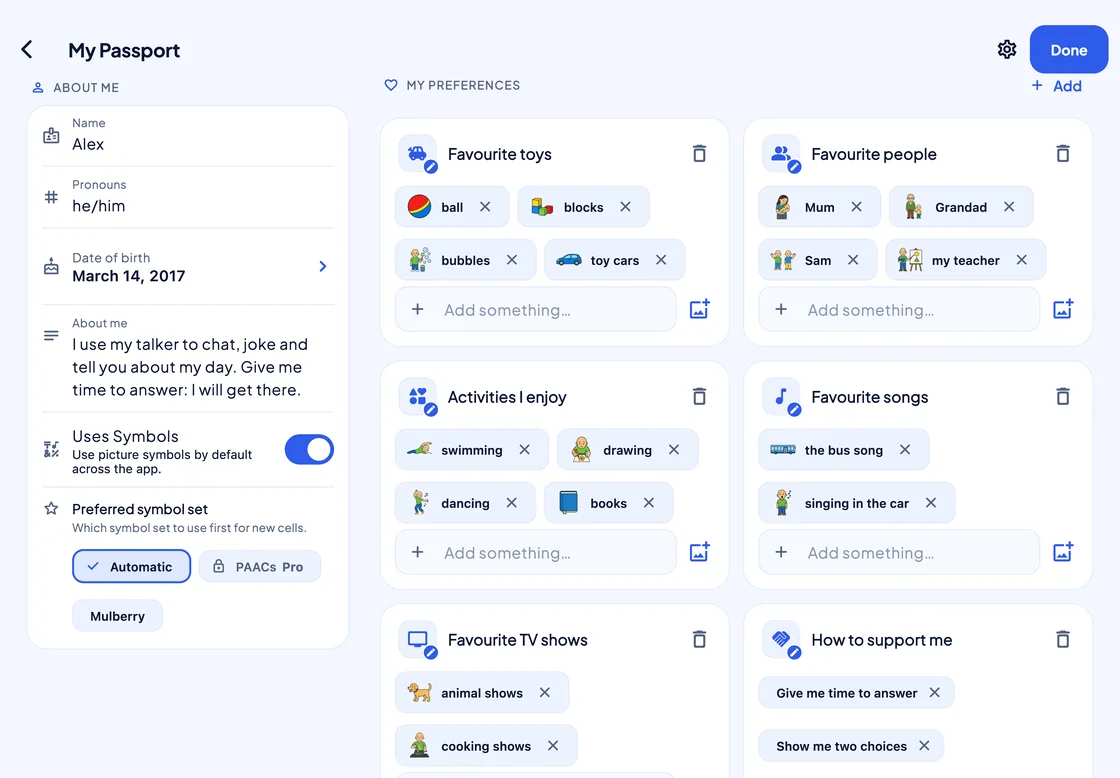
My Passport for Alex: About me with name, pronouns and date of birth, and My Preferences with favourite toys, people, activities, songs and TV shows, and How to support me.
The AAC Passport. Who they are, what they love and how best to support them.
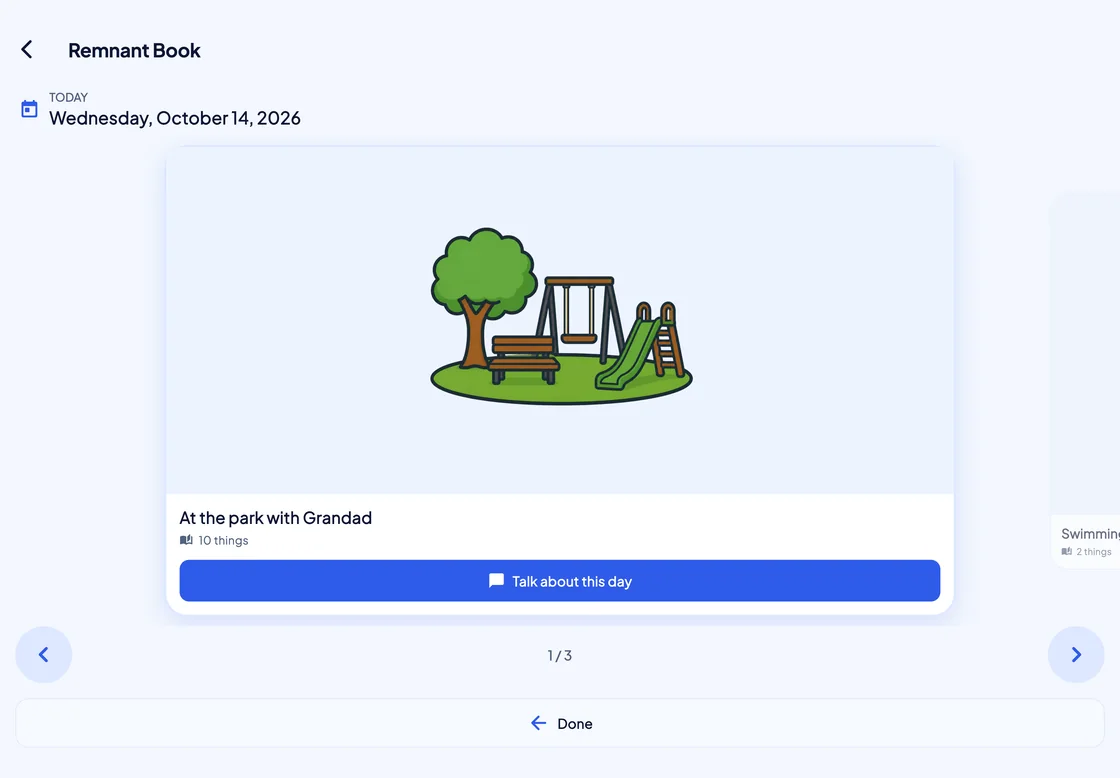
The Remnant Book, today: a day card, At the park with Grandad, with a park picture, 10 things and a Talk about this day button; the next day, Swimming, peeks in beside it.
The Remnant Book. Once it is switched on, SuperAAC gathers each day from the picture words the person used, so “What did you do today?” has an answer.
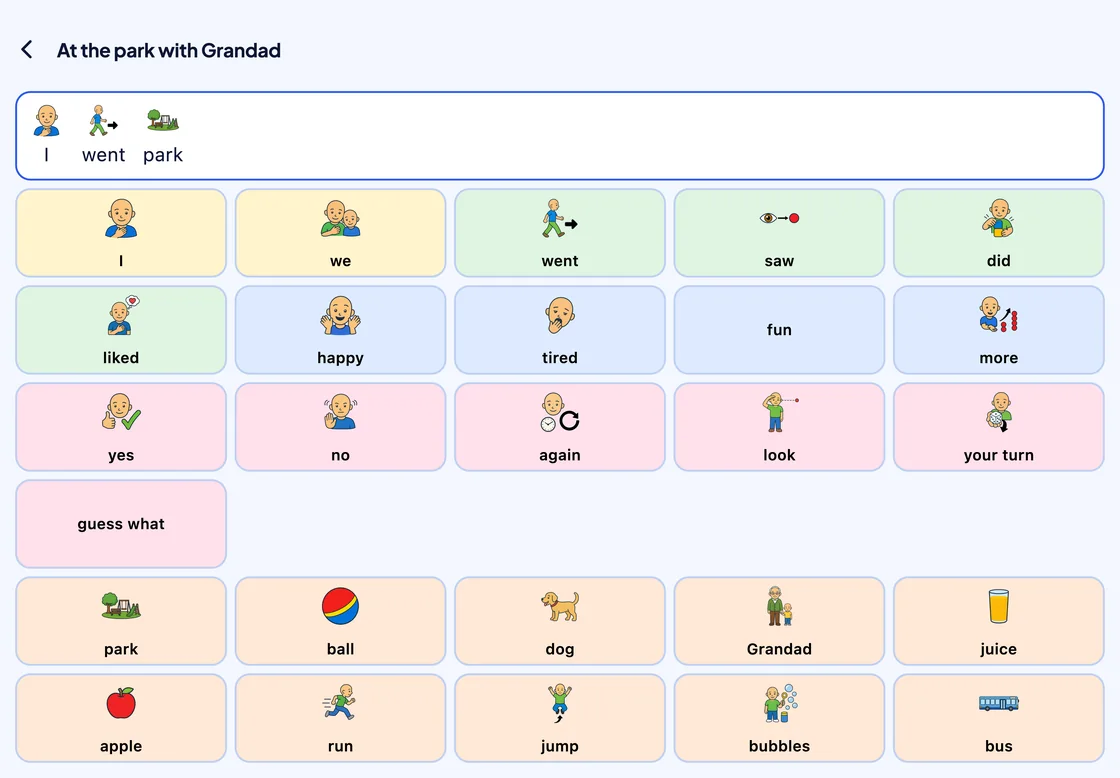
The board for the day At the park with Grandad: “I went park” in the writing area, cells for telling it (I, we, went, saw, liked, happy, your turn, guess what) and the day’s own cells: park, ball, dog, Grandad, juice, apple, run, jump, bubbles, bus.
Each day opens as a board. Words for telling the story, next to the things that happened.
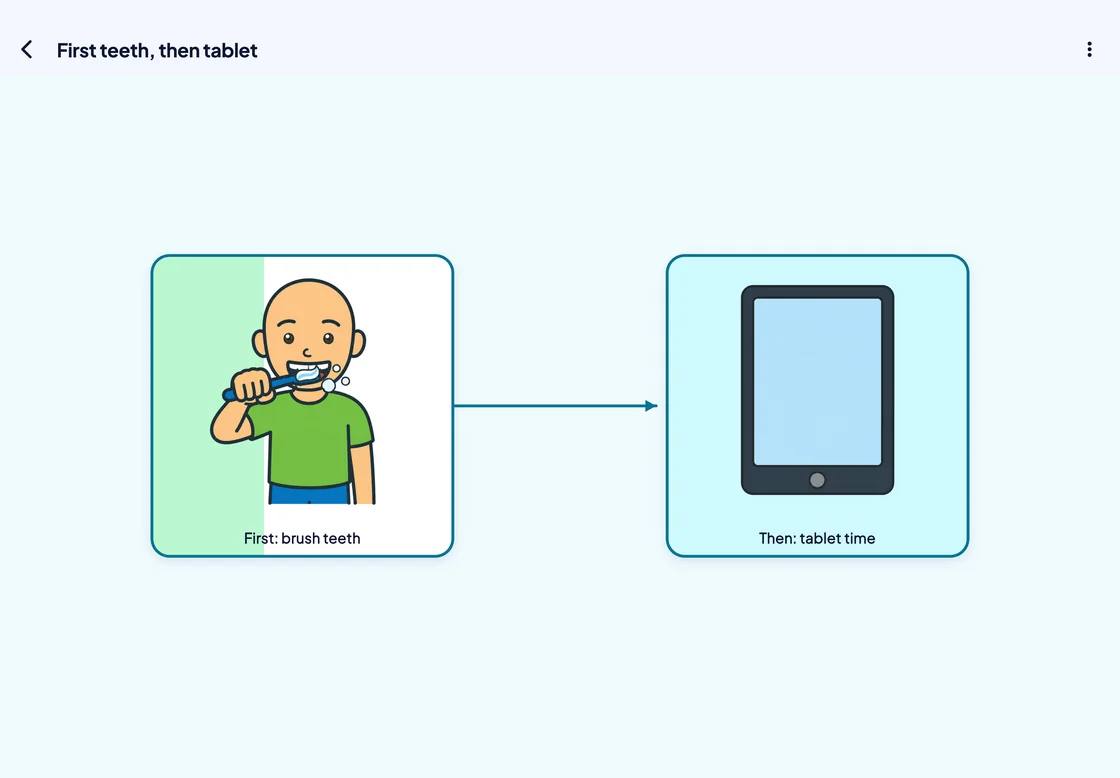
A map called First teeth, then tablet: a node, First: brush teeth, with an arrow to Then: tablet time. The first node’s timer is running, a green fill about a third of the way across it.
First this, then that. Picture nodes joined by arrows; a timer on one can hand off to the next.
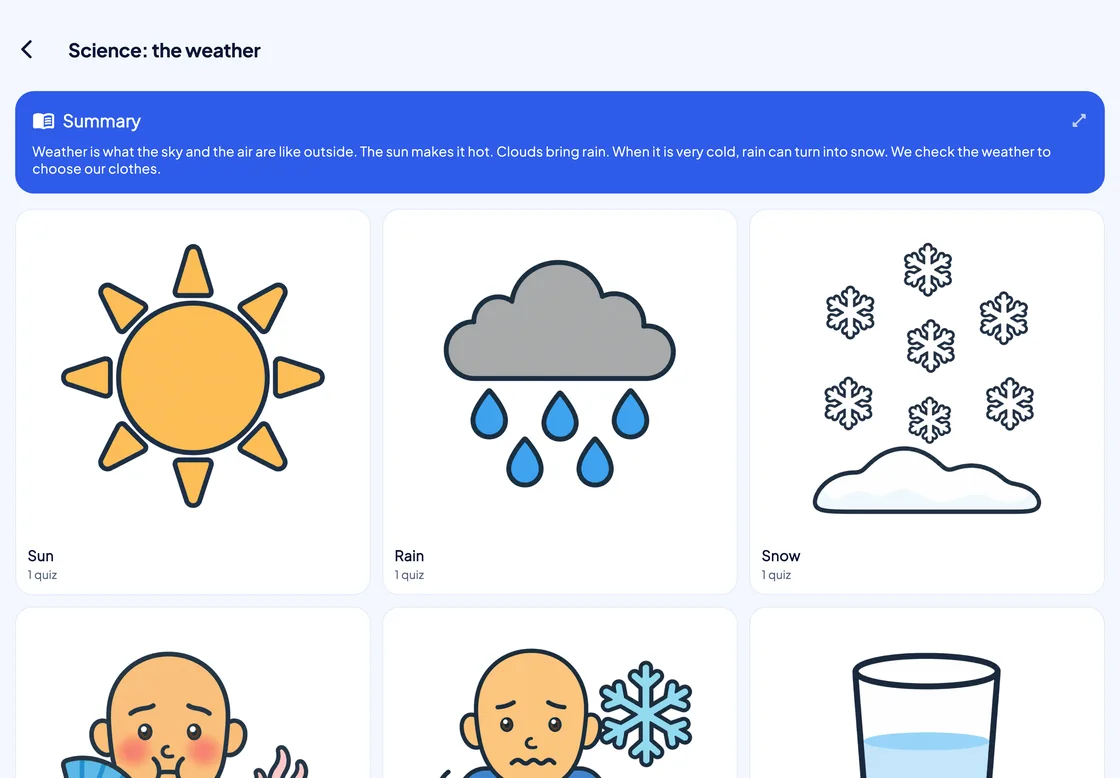
A School Notebook called Science: the weather: a Summary card, then section cards with large PAACs pictures for Sun, Rain and Snow, each with 1 quiz.
A lesson becomes a notebook. From a PDF or pasted text, the AI Assistant (Beta) writes a summary, sections and quizzes at the difficulty you choose.

Communication log

Evidence, when someone asks for it

In Operational capture or Full detail, SuperAAC logs each selection and how it was made; Studio is where you read it.
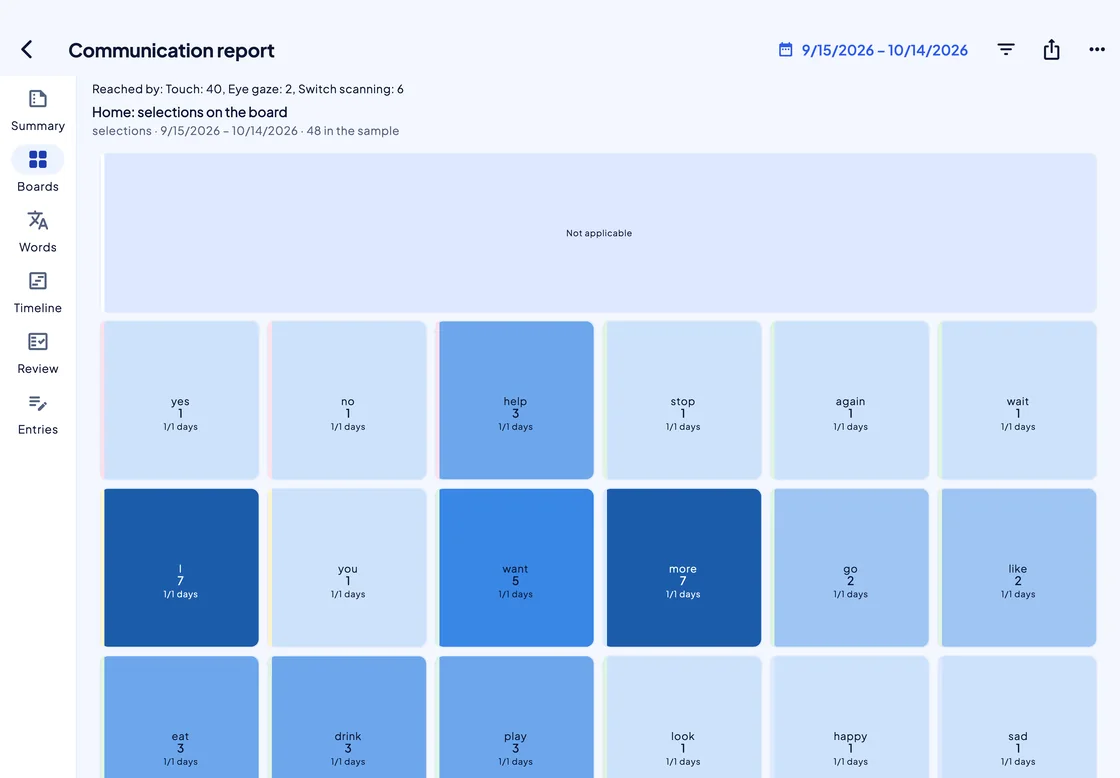
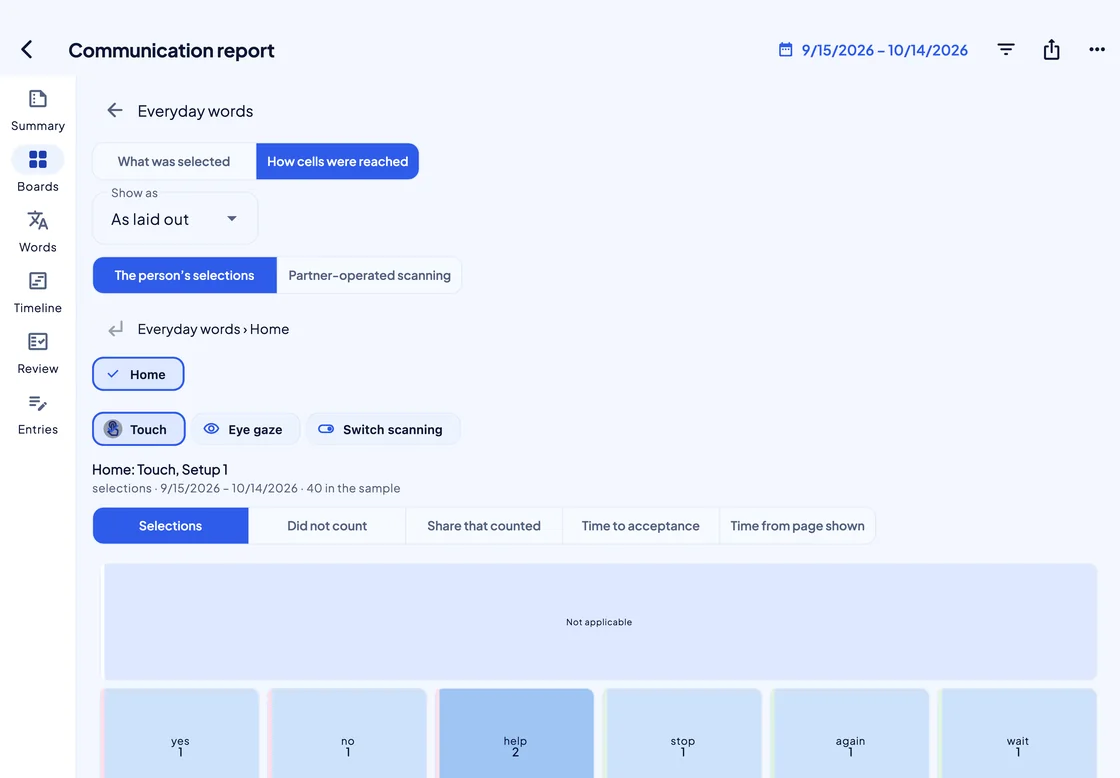
Studio’s Communication report, Boards view for Everyday words: “Reached by: Touch: 40, Eye gaze: 2, Switch scanning: 6”, then a heat map laid out like the board, each cell with its word and number of selections, darker blue where used more.
A heat map shaped like the board. Each cell shows how often it was chosen, and the line above says how: by touch, eye gaze or switch scanning.
The report’s How cells were reached tab: chips for Touch, Eye gaze and Switch scanning; measures for Selections, Did not count, Share that counted, Time to acceptance and Time from page shown; and the top of the board-shaped heat map.
How each cell was reached. Pick an access method to compare selections and timings, cell by cell.
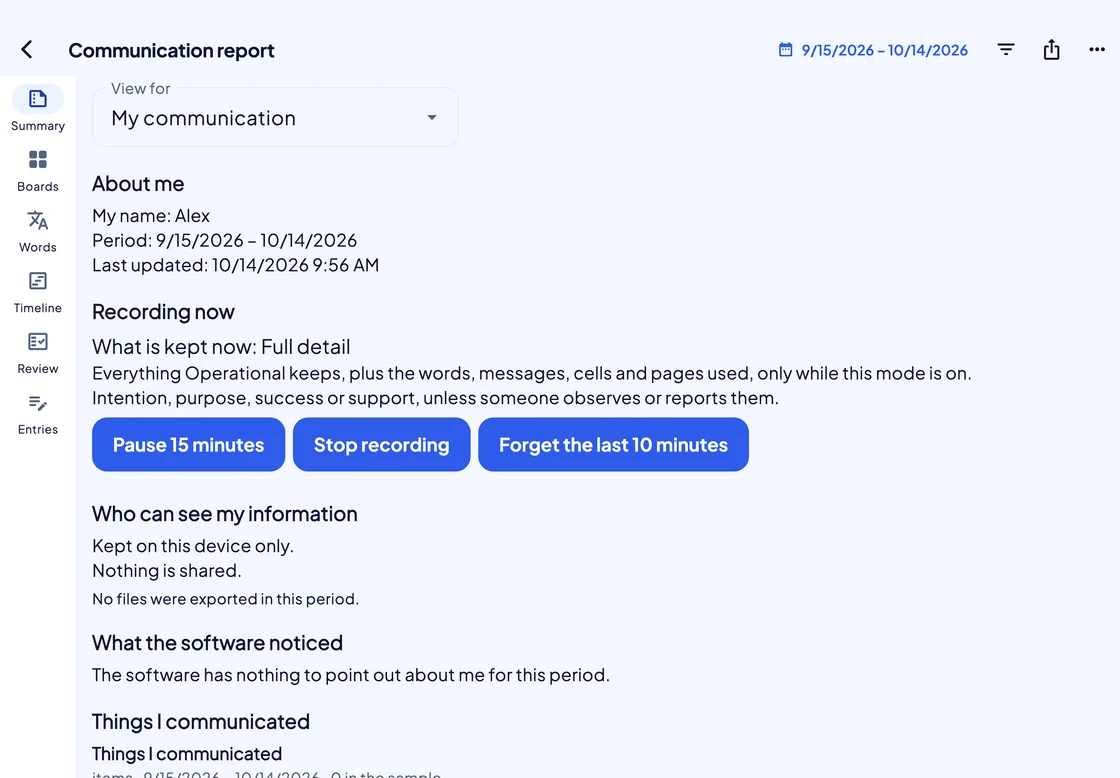
The report as My communication, the person’s own view: About me (My name: Alex), Recording now with Pause 15 minutes, Stop recording and Forget the last 10 minutes, and Who can see my information: Kept on this device only. Nothing is shared.
The person’s own view. They can see what is kept, pause or stop recording, and forget the last 10 minutes.
  • Off until chosen

    Nothing is recorded until someone picks a mode: Observations only, Operational capture or Full detail.

  • Five views, the same figures

    From “My communication” to a clinical summary for a doctor, each view changes the depth, never the numbers.

  • De-identified by default

    Exports come as PDF or CSV, with de-identify switched on every time.

Environmental control

A cell that switches on the lights

Add the Home Scene function to a cell, and pressing it runs a scene: HomeKit on iPhone and iPad, Home Assistant on Windows.
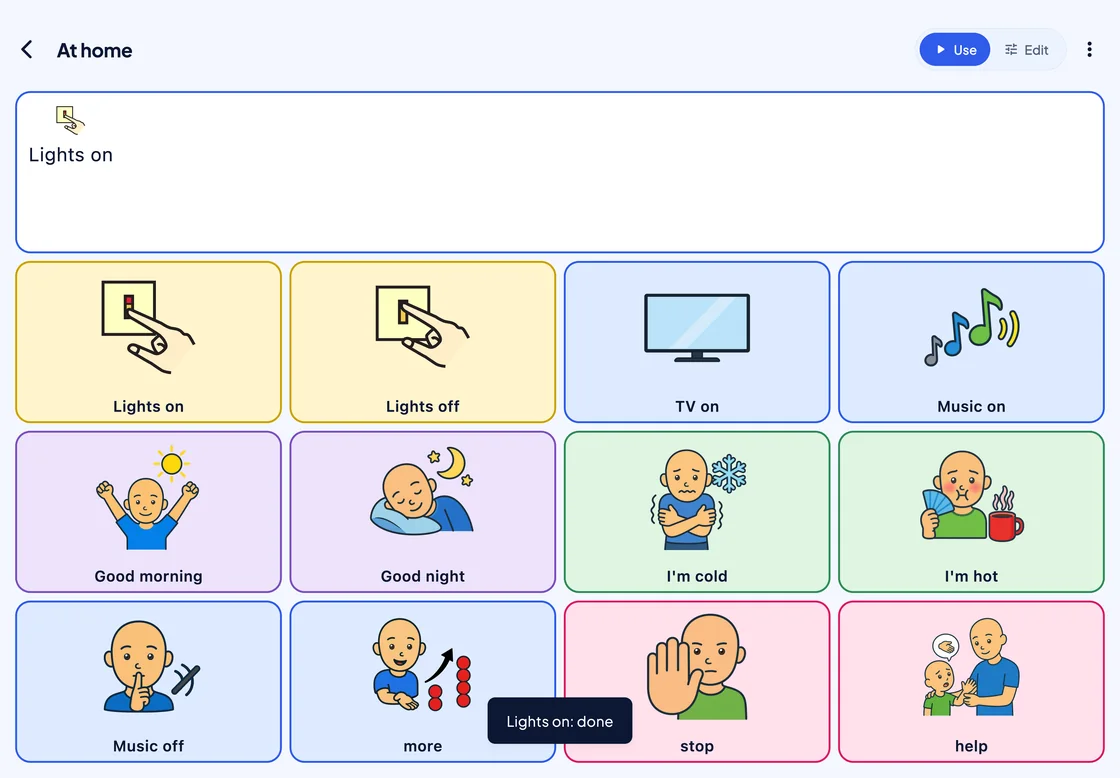
An At home board in use: “Lights on” in the writing area, and 12 picture cells including Lights on, Lights off, TV on, Music on, Good morning, Good night, I’m cold, I’m hot, stop and help. A dark note reads “Lights on: done”.
Say it, and it happens. One press writes “Lights on”, speaks it and runs the scene, and SuperAAC shows when it is done.
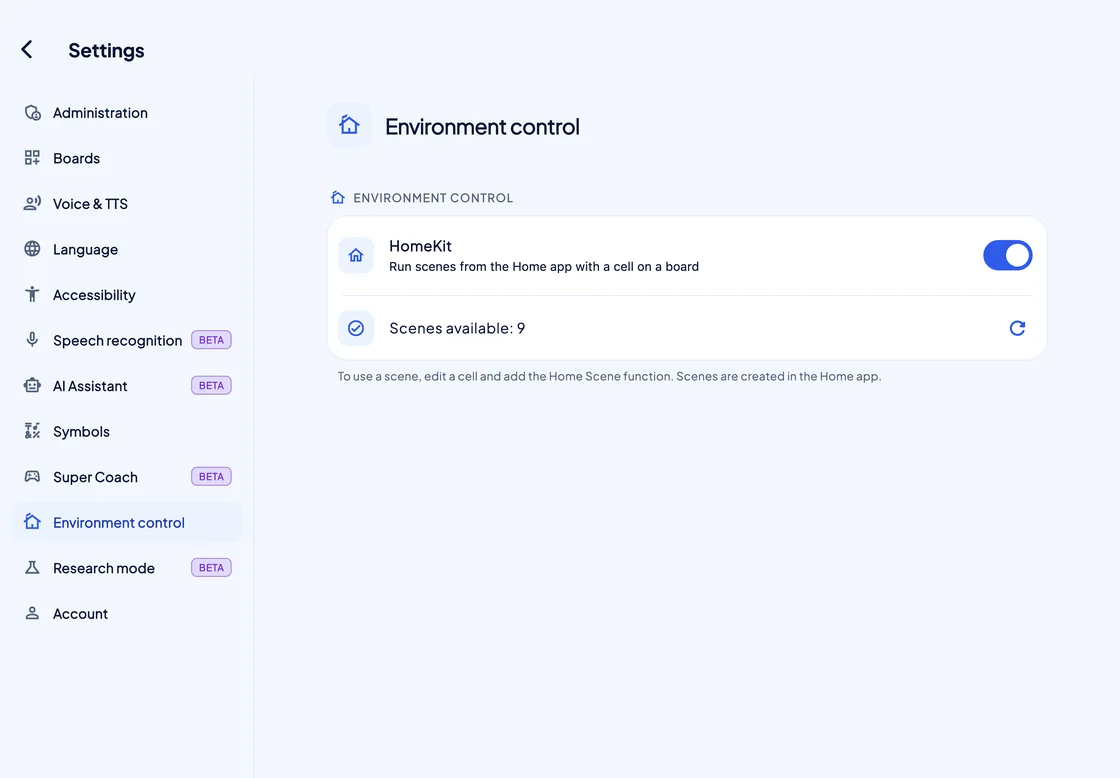
Settings, Environment control: the HomeKit switch on, with Run scenes from the Home app with a cell on a board, Scenes available: 9, and a note to add the Home Scene function to a cell.
Set up under “Environment control”. Switch on HomeKit, and SuperAAC finds the scenes made in the Home app.
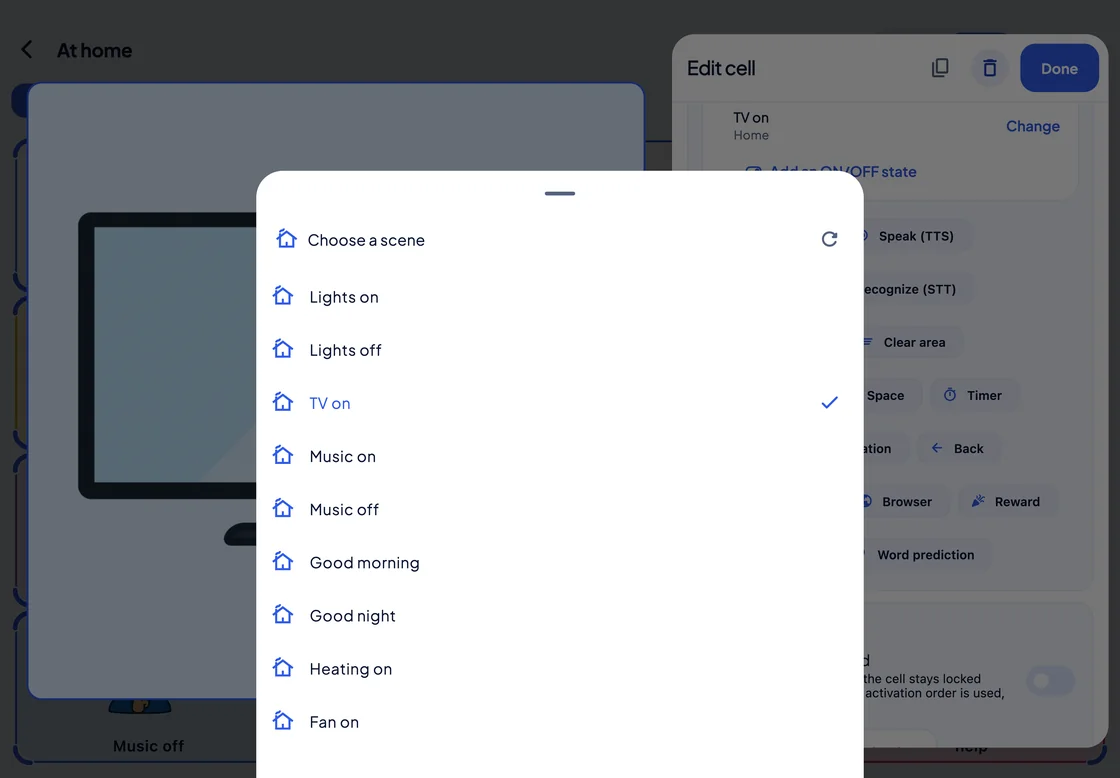
The Choose a scene sheet over the Edit cell panel of a TV on cell, listing the home’s scenes: Lights on, Lights off, TV on (ticked), Music on, Music off, Good morning, Good night, Heating on and Fan on.
Choose from the home’s own scenes. Add an ON/OFF state, and one cell can turn the lights on and then off.

Remote control

Edit their boards from your own device

With “Remote access”, a linked therapist or teacher opens the person’s boards on their own device, with the person’s permission.

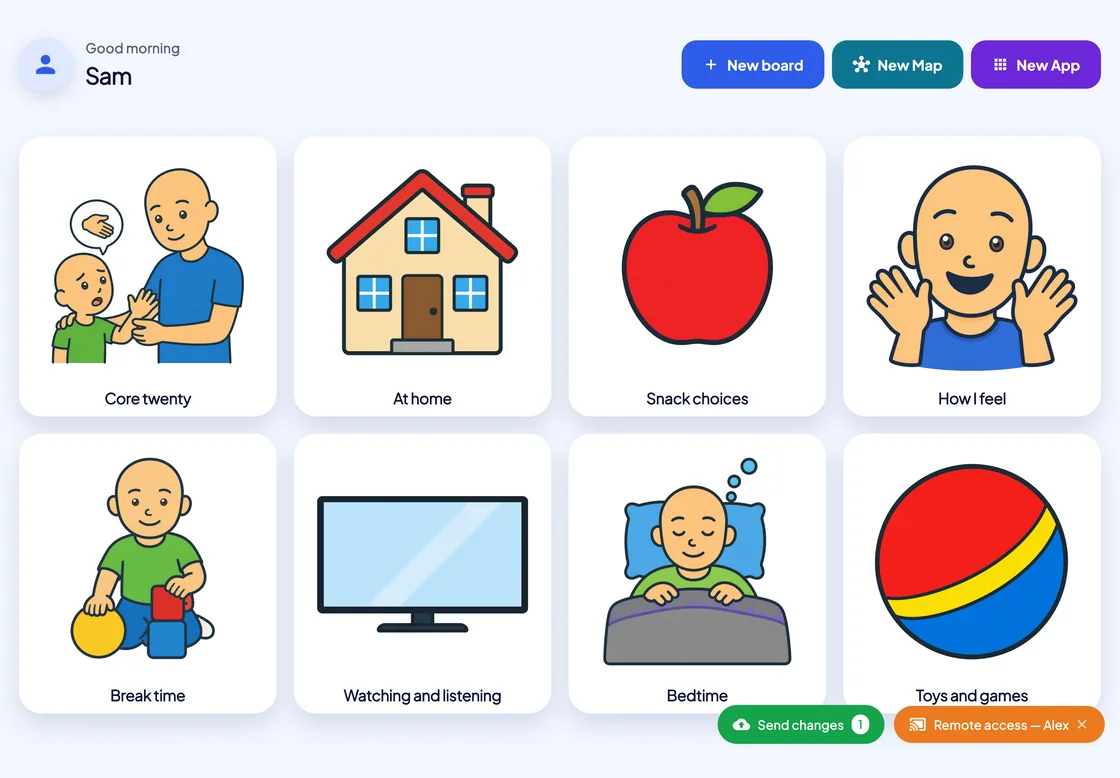
Sam’s SuperAAC home screen showing Alex’s eight boards with PAACs covers, a green Send changes button with the count 1, and an orange Remote access — Alex badge.
Their boards, on your device. The “Remote access — Alex” badge says whose boards are open; the number on Send changes counts the boards with edits waiting.
  • With their permission

    The person allows viewing and editing their boards; changing their settings is a separate permission.

  • Sent when you are ready

    Edits wait until you press Send changes, then reach the person’s device at once or the next time it opens.

  • Pro or Max on both accounts

    Remote control works through the cloud, so both accounts need a Pro or Max plan.

Play

Games that teach cause and effect

Nine games for someone at the very start: each touch makes something happen.

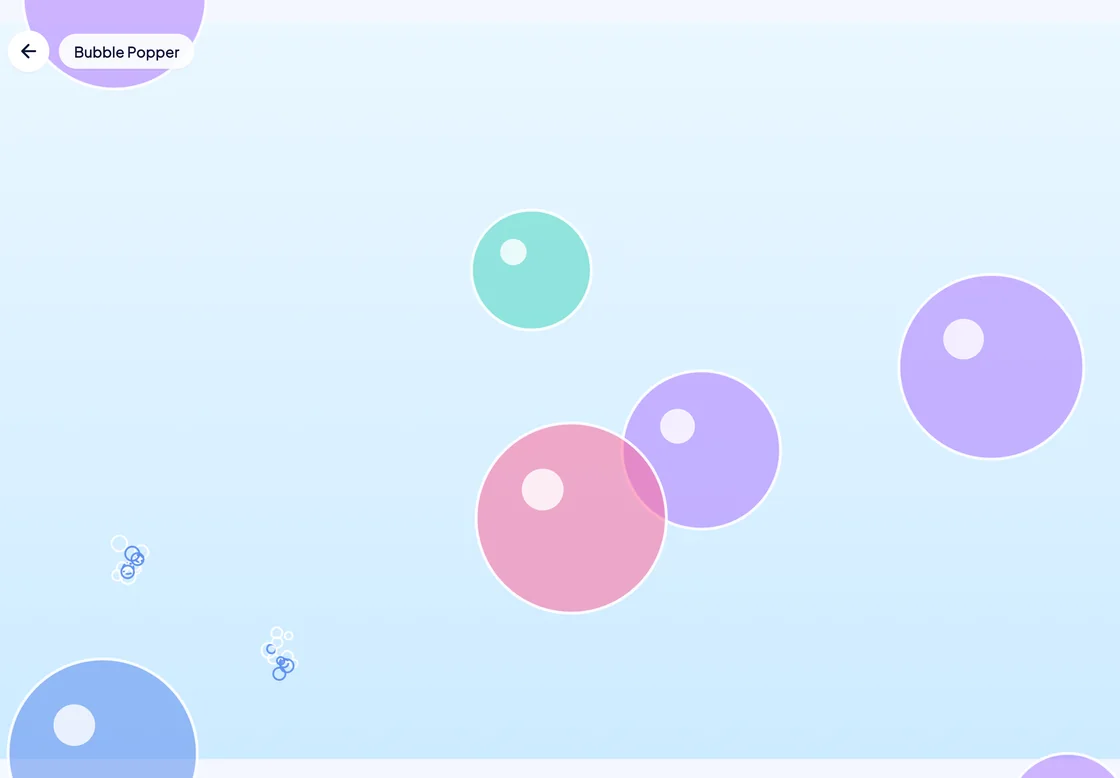
The Bubble Popper game: translucent pink, purple, teal and blue bubbles float up a light blue background, with two small bursts where bubbles were just popped.
No score, no fail state. Switch and eye-gaze users get real targets to aim at. Calm mode turns off the particles and the game’s own sound and vibration.

SuperCoach

Model on their board, from your phone Beta

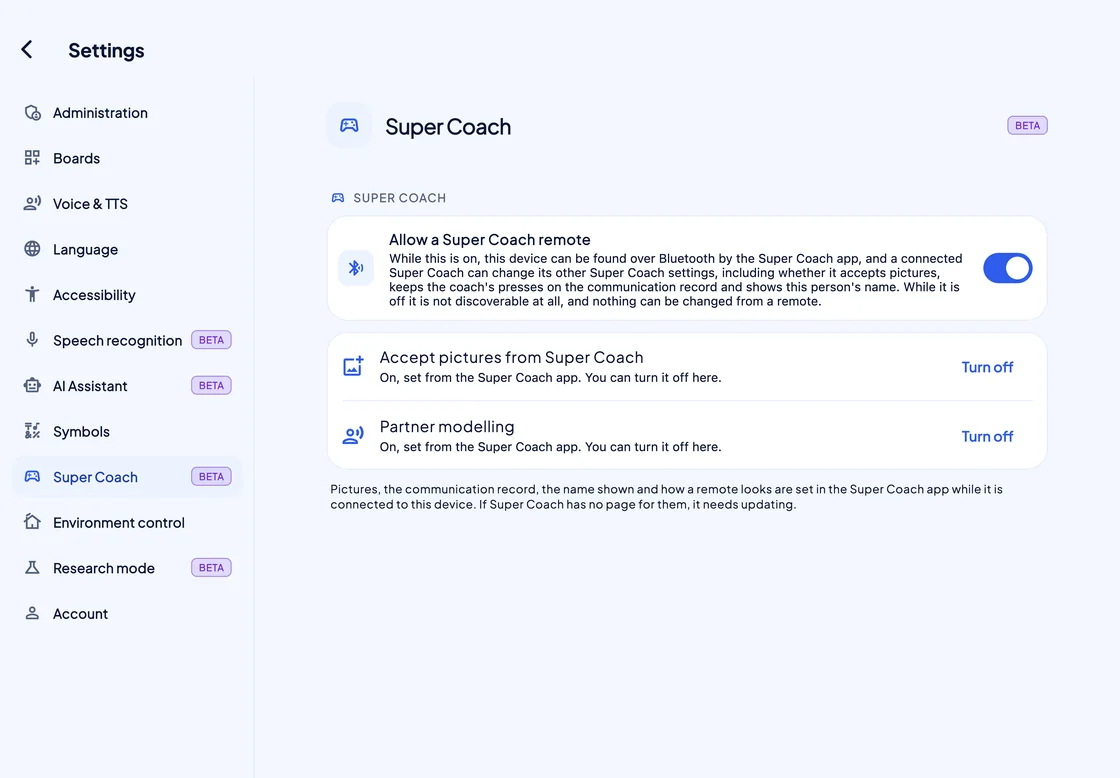
SuperCoach connects only while the person’s SuperAAC has “Allow a Super Coach remote” switched on.

SuperAAC Settings, Super Coach (Beta): Allow a Super Coach remote switched on, with its explanation, and below it Accept pictures from Super Coach and Partner modelling, each with Turn off.
Only the person’s device has this switch. While it is off, SuperAAC cannot be found over Bluetooth at all.

Plans

Three plans.
All of them talk.

Each plan is sold monthly, or for five years paid once.

  • Basic

    €5.99 a month

    or €190 for five years, paid once

    The whole communication system: boards, speech, pictures, the AAC Passport, the Remnant Book and every access method.

  • Pro

    €9.99 a month

    or €490 for five years, paid once

    Everything in Basic, plus PAACs symbols, boards that sync across devices, and a connection with therapists.

  • Max

    €18.90 a month

    or €890 for five years, paid once

    Everything in Pro, plus backup of the image and audio libraries, Research mode (Beta) and a Super Specialist page.

If a plan lapses,
the board keeps talking.

Nothing changes for 14 days; then the account moves to Basic, with boards, speech and access settings intact. Renewal comes up only on the Home screen, never mid-sentence.

Tech specs

The details

Platforms
iPhone, iPad, Android, Windows and Mac.
iPhone and iPad
iOS or iPadOS 16.0 or later.
Android
Android 7.0 or later, phone or tablet.
Mac
macOS 12 Monterey or later.
Windows
Windows 10 or 11, x64; ARM PCs run it under emulation.
Access methods
Touch; mouse, trackpad or head pointer; switch scanning with one or two switches (linear or row and column, automatic or step, auditory, partner-assisted, or the screen as a switch); eye gaze with dwell or blink.
Eye trackers
Skyle 3 (eyeV); Alea IntelliGaze CAM30NXT on Windows; or a tracker that drives the system cursor.
Speech output
Device voices, or the Monolith voice, an Italian neural voice that runs on the device offline; rate and volume, and pitch for device voices; recorded sound on any cell.
Phone and video calls
iPhone and iPad with iOS or iPadOS 18.2 or later: what the person says goes into a phone call, FaceTime and most other call apps that use Apple’s voice processing. Off by default, set up once in Settings, and also heard in the room. Someone may need to help with the setup once. The person answers the call, and SuperAAC stays on screen. Not for phone calls on Android, Mac or Windows. SuperAAC’s own video calls, for a linked therapist or teacher on Pro or Max that the person allows, are coming; the person needs their own sign-in.
Speech recognition (Beta)
The device’s own recogniser, or on-device Whisper, whose model downloads once.
Vibration
iPhone and Android phones; iPad only through an Apple Pencil Pro; not on Windows or Mac.
Symbol sets
Mulberry 3.5.2 (3,436 symbols, every plan) and PAACs (692 symbols, Pro and Max), plus photos and your own image sets.
Ready-made boards
87 boards in 12 categories.
Environmental control
Home scenes from a cell: HomeKit on iPhone and iPad, Home Assistant on Windows.
Remote control
For a linked therapist or teacher, with the person’s permission; Pro or Max on both accounts.
Communication log
Off until a mode is chosen; kept for 180 days by default; read in Studio; exported as PDF or CSV, de-identified unless you choose otherwise.
Languages
17: English (UK and US), Italian, German, French, Spanish, Portuguese, Polish, Croatian, Danish, Dutch, Finnish, Swedish, Norwegian, Estonian, Chinese, Japanese and Korean.
Works offline
The first sign-in needs a connection. After that, boards and speech work with no network; on Pro and Max, boards sync whenever there is one. Cloud AI always needs a connection.
Account
A Super Account is required; the same account works in SuperVOCA and SuperCoach.
Manual
Built in, under Settings › Account › About › How to use: 20 chapters and 167 topics, exportable as a fillable PDF, plus a Quick guide.
Plans
Basic, Pro and Max, monthly or five years paid once. A licence can also come through a school, a health service or a reseller.
If a plan lapses
14 days unchanged, then Basic; communication never stops.

Install it on the device
that will do the talking.

Sign in once while there is a connection, then follow the guided setup: name, access method, starter boards and plan.

  • 17 languages
  • 5 platforms: iPhone, iPad, Android, Windows and Mac
  • Offline Boards and speech need no network after the first sign-in

The SUPER suite
Your words. Your voice. Your way.